

Remote work isn’t going anywhere. And if you’ve been trying to figure out how to setup remote desktop to work from home, you’re not alone — millions of professionals rely on this exact technology every single workday. The good news? It’s more accessible than it looks, and you don’t need an IT degree to get it running.
Whether you’re accessing a Windows PC at the office from your laptop at home, or setting up a permanent work-from-home system, this guide covers everything — from the basics of what remote desktop actually does, to the step-by-step setup, security hardening, and the best tools worth using in 2026.
What Remote Desktop Actually Does (And Why It Matters)
Before diving into the setup, it helps to understand the mechanic. Remote Desktop lets you connect to a computer in another location — such as your work PC — over a network connection like the internet. You can see that computer’s screen, open files, run applications, and use your mouse and keyboard as if you were sitting directly in front of it.
That last part is what makes it genuinely useful. You’re not syncing files or using a cloud version of your software. You’re controlling the actual machine — your work computer, your office setup, your licensed software — from home, in real time.
Remote desktop technology has become an essential tool for individuals and businesses alike. Whether you’re working from home, managing a team, or providing IT support, the ability to access your computer from anywhere makes it easier to collaborate, troubleshoot, and manage tasks across distances.
How to Setup Remote Desktop to Work from Home on Windows
This is the most common scenario, and thankfully Windows has this built in. No third-party installs needed — at least for the core setup.
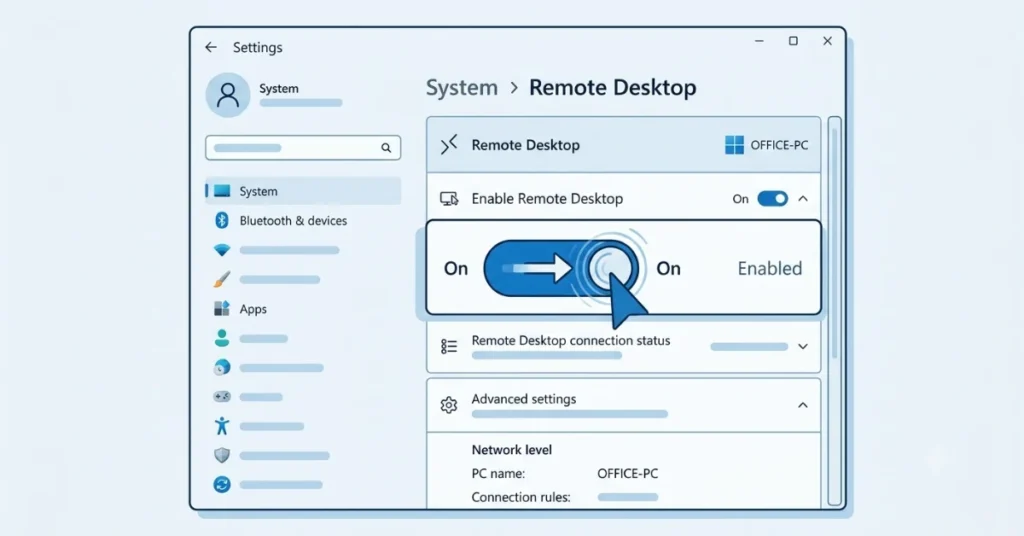
Step 1: Enable Remote Desktop on Your Office PC
To set up a remote desktop connection on Windows, you’ll need to access and enable the Remote Desktop feature in both your home and office computer settings. The process is similar on Windows 10 and Windows 11: go to Settings, select System, then Remote Desktop, and turn on the Remote Desktop toggle.
A quick note: Windows Home edition doesn’t support this feature. You’ll need Windows Pro, Enterprise, or Education. If your work machine runs Windows Home, skip to the third-party tools section below.
Step 2: Write Down Your Computer Name
Before you leave the office — or before your IT team locks down access — grab your computer’s name. Go to Settings → System → About, and write down the device name shown there. You’ll need this exact string to connect from home.
Step 3: Configure User Permissions
Click “Select users that can remotely access this PC” to add users who can log in remotely. By default, your current account is included, but you might want to add others who need access. Keep this list tight. Only add accounts that genuinely need access.
Step 4: Sort Out Power and Sleep Settings
This one trips people up constantly. Your office computer needs to stay on and awake while you’re connecting from home. Go into Power Settings and set the machine to never sleep. Sounds obvious, but it’s the most common reason connections fail.
Step 5: Connect From Home
On your local PC, select Start, type Remote Desktop Connection, and open the app. In the Remote Desktop Connection window, enter the computer name or IP address of the remote PC. Select Connect, provide your credentials, and select OK.
Done. You should now be looking at your office desktop from home.
The Security Layer You Can’t Skip
Here’s what most quick-setup guides leave out — and why it matters. Remote desktop access, if left unsecured, is one of the most targeted entry points for attackers.
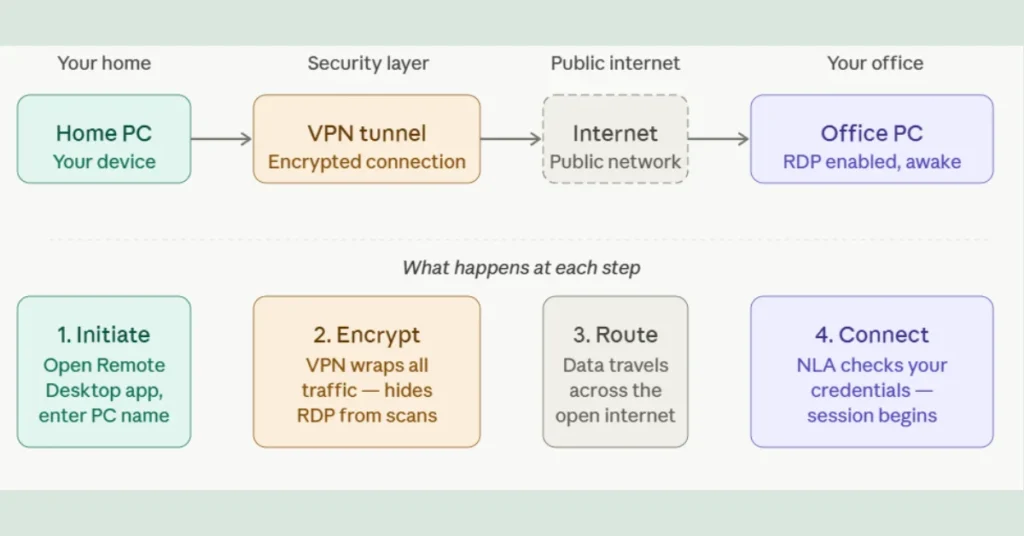
The single most important rule when configuring RDP is to never expose the RDP port (TCP 3389) directly to the internet. An exposed RDP port is a massive, visible target that attackers constantly scan for.
For most home workers, this means one thing: always connect through a VPN first. It’s highly recommended that all remote connections go through a VPN before reaching the RDP session. This won’t eliminate every risk, but it significantly reduces your attack surface.
Network Level Authentication (NLA) adds an extra layer of security to Remote Desktop connections. With NLA enabled, users must authenticate themselves before a remote session is even established, reducing the risk of unauthorized access and protecting your PC from malicious users and software.
Strong passwords on any accounts with access to Remote Desktop should be considered a required step before enabling the feature. Departments should also consider using a two-factor authentication approach. In 2026, a long, complex password plus 2FA is the absolute baseline — not a bonus.
One more thing worth flagging: starting with the April 2026 security update, the Remote Desktop Connection app on Windows now shows new security warnings when you open RDP files. Don’t ignore these. If you receive an RDP file you weren’t expecting, don’t open it — even if the email looks legitimate.
What the Research Shows: How Remote Desktop Is Being Used in 2026
remote desktop software market was valued at $3.74 billion in 2025 and is projected to reach $14.36 billion by 2035 — driven almost entirely by the surge in distributed workforces. To put that growth in context, the share of workers in remote arrangements globally climbed from 13% in 2020 to 28% by 2023, according to Statista data — and that number has only continued rising since.
By 2026, remote desktop software is no longer just a backup tool. Professionals now rely on it to run remote offices, deliver IT support, access files, manage devices, and even access gaming rigs from afar. The software category has matured significantly, and the options available today are considerably better than what existed even three years ago.
An important change happened in March 2026: the standalone Remote Desktop client MSI for Windows reached end of support for public cloud environments. Microsoft now recommends migrating to Windows App for Azure Virtual Desktop access. If your organization uses Azure, check with IT about whether that migration affects your setup.
Third-Party Options Worth Considering
Not everyone has a Windows Pro machine at the office, and not every setup lends itself to native RDP. That’s where third-party tools come in.
Chrome Remote Desktop is the easiest starting point — free, runs in your browser, no account setup beyond a Google login. Free tools like Chrome Remote Desktop offer basic access, but lack key business features such as session logging, access control, and dedicated support. They’re not ideal for managing remote devices in secure or scalable environments. For personal or occasional use, it works fine. For daily professional work, the limitations show up fast.
AnyDesk sits a step above Chrome Remote Desktop. AnyDesk has rapidly gained popularity as a lightweight yet powerful remote desktop solution. Its standout feature is remarkable performance achieved through a custom video codec that delivers fluid remote control even on modest internet connections. AnyDesk offers strong TLS 1.2 encryption and a permission system that gives users granular control over access rights.
TeamViewer is the enterprise standard. It excels with features like file transfer, remote printing, and multi-monitor support, making it ideal for technical support scenarios. Performance is generally excellent even on slower connections, with strong encryption and two-factor authentication providing strong security. The free tier is personal-use only — business use requires a subscription.
Anyone who has worked across multiple machines for any length of time knows the pattern: start with Chrome Remote Desktop because it’s free, hit its limitations within a week, and end up on AnyDesk or TeamViewer.
How to Set This Up on Mac
Mac users aren’t locked out. You can download the Microsoft Remote Desktop app from the Mac App Store to connect to a Windows PC. The setup process mirrors Windows on the receiving end — you still need to enable Remote Desktop on the PC you’re connecting to — but the Mac client handles the connection cleanly.
Alternatively, Mac-to-Mac remote access uses a different system (Apple Remote Desktop or Screen Sharing via macOS), which is worth exploring if your entire setup is Apple-based.
Common Problems and How to Fix Them
“Can’t connect” errors almost always trace back to either the host computer being asleep, the firewall blocking the connection, or an incorrect computer name. Check all three before assuming a configuration issue.
Lag or slow performance usually points to internet bandwidth. Remote desktop is surprisingly lightweight, but if the office connection is throttled or the home router is overloaded, session quality suffers. A wired Ethernet connection on the home end helps more than most people expect.
Windows Home edition blocking setup is a common wall beginners hit. The built-in RDP feature simply doesn’t exist on Home editions. Use Chrome Remote Desktop or AnyDesk as your workaround — both work on all Windows versions.
Setting Up Remote Desktop the Right Way: Final Thoughts
Getting how to setup remote desktop to work from home right comes down to three things: the right Windows edition or tool, stable power and network settings on the host machine, and a proper security setup before you expose anything to the internet. Skip any of these and you’ll either hit a wall or leave a door open that shouldn’t be.
For most people, the native Windows RDP setup — with NLA enabled, a VPN layer, and strong credentials — covers everything needed for daily professional work. Those on Windows Home, Mac, or managing multiple devices should look at AnyDesk as the best balance of free capability and real performance as of 2026.
The technology works extremely well when configured properly. And once it’s running, you won’t want to go back to hauling a laptop back and forth every day.

FAQs
Can I use Remote Desktop without a VPN?
Technically yes, but it’s not recommended. Exposing RDP directly to the internet invites brute-force attacks. A VPN creates an encrypted tunnel that keeps your connection out of reach from external scanners.
Does Windows Home support Remote Desktop?
No. The built-in RDP feature is only available on Windows Pro, Enterprise, and Education. If you’re on Windows Home, use Chrome Remote Desktop or AnyDesk instead.
Do both computers need to be on the same network?
Not necessarily. With the right configuration — or via a third-party tool — you can connect across different networks. A VPN often simplifies this for corporate environments.
Is remote desktop secure enough for professional work?
Yes, when properly configured. Enable NLA, use a VPN, set strong passwords, and enable two-factor authentication. These steps together give you a secure, professional-grade connection.
What’s the difference between Remote Desktop and screen sharing?
Screen sharing (like Zoom or Teams) shows your screen to others. Remote Desktop gives someone — usually you, from another device — full interactive control over the machine, including its files, apps, and desktop.
